
Short Course Programme Joining Instructions
We look forward to welcoming you onto a course. Joining Instructions are provided to help you access your course, navigate the online learning environment and make the most from attending.
Click on the headings below for full details
- How to access the course
- Guidance for creating an External ID Account for Blackboard
- Making the most of the course
- Recordings and ongoing access
- Accessibility Requirements
- Help with Blackboard and Live sessions
- Important note about attendance for delegates with FREE places
If you have any questions or difficulties get in touch with our Programme Team
HOW TO ACCESS THE COURSE
Courses are delivered via Blackboard, where you will be able to access all learning materials and join live sessions.
Access Blackboard via: https://www.ole.bris.ac.uk/.
If you have University of Bristol credentials: login using your UoB username and password via the ‘staff and student login’ button (as pictured below). Access will be granted approximately 1 week in advance of the course.
If you are joining externally as a non-University of Bristol participant: please follow the guidance for setting up and logging in with an External ID Account below.
You will locate the course under 'Organisations' from the lefthand menu, not 'Courses'.
We have found Blackboard works best with Google Chrome. If you are having any difficulties opening documents or joining live sessions, please check that you are using Chrome, refresh your browser, check your browser permissions to share screen and audio and enable cookies.
We will provide access to the course approximately 1 week in advance of the course. You will receive an email informing you when Blackboard and the course materials are available to access.
We encourage you to log in ahead of time to confirm your access and familiarise yourself with the online learning environment. If you are new to Blackboard, or would like a refresher, we recommend you explore the resources in the ‘Help for course participants’ section in Blackboard and take a look at the 'Help with Blackboard and live sessions' section below.
GUIDANCE FOR CREATING AN EXTERNAL ID ACCOUNT FOR BLACKBOARD
To access Blackboard, our virtual learning environment, please create a user account via the link below:
Create your Blackboard account
Please be aware that you’ll need to use the email address with which you signed up to the short course.
Instructions are outlined below, but if you need further assistance, email short-course@bristol.ac.uk or refer to the following detailed guidance and troubleshooting: EntraExternalID-guidance-troubleshooting (PDF, 277kB)
Once registration is complete, you’ll be redirected into Blackboard. For future access, please go to the Blackboard homepage and select External login.
Note: your email address will be your username and you will be prompted to enter a code upon each sign in.
Please complete this process well in advance of your course taking place so we can ensure you have access in time.
Account creation instructions
- When you see a sign in box, click No account? Create one.
- Enter your email address (it must match the one you used to sign up to the short course).
- Verify your email, a code will be sent to your email address which you’ll need to type in. The email will be sent from account-security-noreply@accountprotection.microsoft.com. If you didn’t get the email, check your junk folder or select try again.
- Create a password. This must be a minimum of 8 characters and requires three out of four of the following types of characters:
- Lowercase characters
- Uppercase characters
- Numbers
- Symbols
- Type in your First name and Last name then tick the box to agree to the Terms of Use and select Next.
- You will then be redirected to your Blackboard account.
MAKING THE MOST OF THE COURSE
Our online courses are designed with interactive elements, and we encourage active participation to ensure you get the most from the experience. Introduce yourself, ask questions and network with others using the course padlet. We also encourage you to turn on your camera for group work sessions, which are not recorded.
RECORDINGS AND ONGOING ACCESS
We endeavour to record all live lecture sessions and upload these to the online learning environment within 24-48 hours. This will enable you to review these sessions at your leisure and revisit them later. Please note that we do not record breakout sessions.
If you do not wish to appear in any recordings, please ensure that you join live sessions with your camera and microphone switched off. However, we do encourage you to turn on your camera for group work sessions, which are not recorded.
We provide ongoing access to learning materials and recordings for five months after the course.
ACCESSIBILITY REQUIREMENTS
If you have any accessibility requirements, please let us know by updating the accessibility form in your short course booking account. Alternatively, if you would like to discuss any access needs, please contact us directly.
HELP WITH BLACKBOARD AND LIVE SESSIONS
For assistance navigating Blackboard and accessing live sessions, you may find the following resources helpful:
To join live sessions:
- Select 'Join Session' under ‘Details & Actions’ from the menu on the right hand side.
- Select 'Organisation Room'
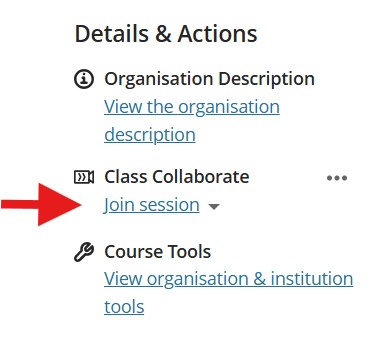
Further guidance on using Blackboard can be found below.
Video: How to: Blackboard Quick Guide
Video: How to: Collaborate Quick Guide
Live Session Troubleshooting Guidance
University of Bristol Digital Education Student Support Page
IMPORTANT NOTE ABOUT ATTENDANCE FOR DELEGATES WITH FREE PLACES
As you have been fortunate to secure one of a limited number of free places on this course, please make sure you attend all live sessions. Our courses are extremely popular and often have waiting lists, so by missing all or part of the course you may be preventing others from benefiting. If you need to cancel your place, try to let us know as far in advance as you can so we can offer your place to someone on the waiting list.
We will be monitoring attendance and those who do not attend, or do not provide a reason for non-attendance prior to the course, will be prevented from attending any further courses during the academic year. This is clearly outlined in our booking terms and conditions and is at the discretion of the short course team.
Further support
Download the What-to-expect.pdf (PDF, 58kB) guide for a brief run through of the steps involved with attending an online short course.
For more in depth guidance visit our comprehensive Frequently Asked Questions page, or get in touch with our Programme Team directly.
For detailed instructions and troubleshooting for setting up an External Blackboard user account download: EntraExternalID-guidance-troubleshooting (PDF, 277kB)